


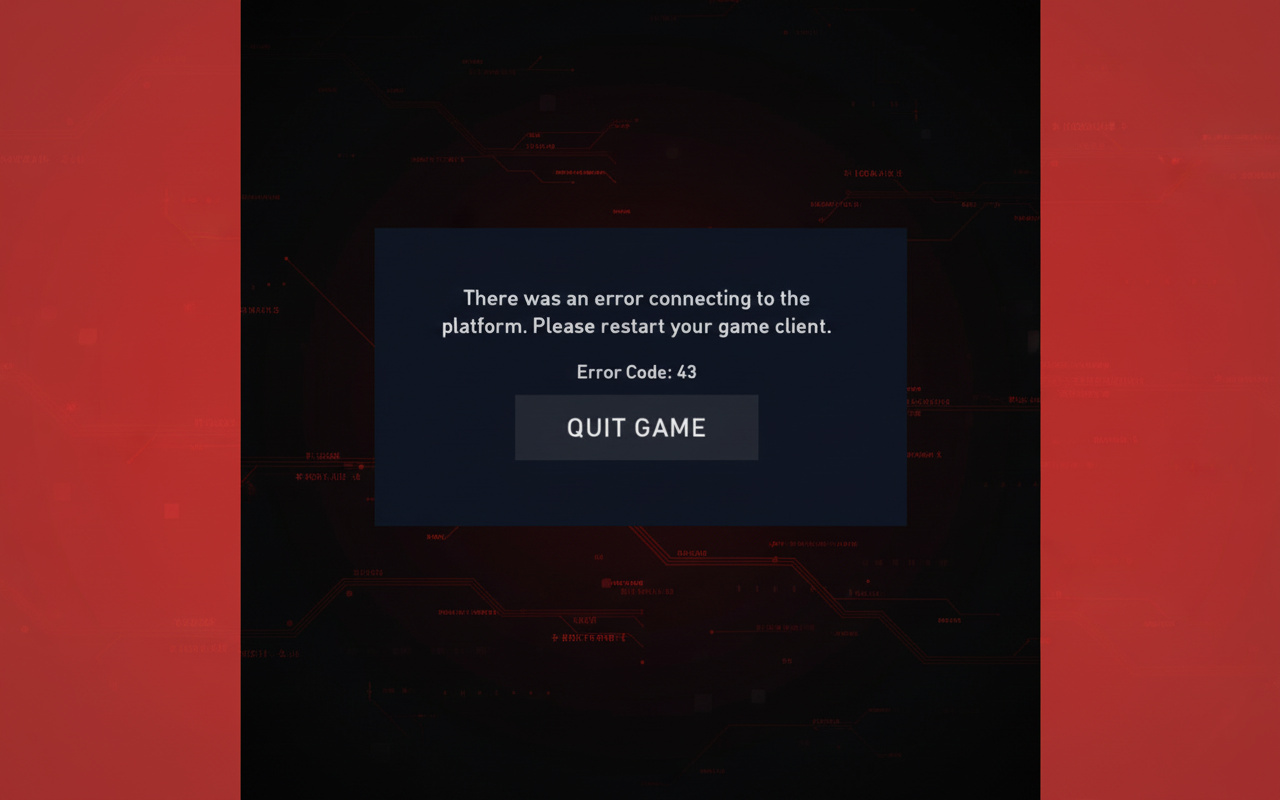
Stuck staring at the Riot Client because Valorant crashes out before it loads? Those VAN 9001, VAN 9003, or VAN 9090 codes popping up? I’ve dealt with this crap myself, and it’s brutal watching your team queue without you.
Vanguard Requirements
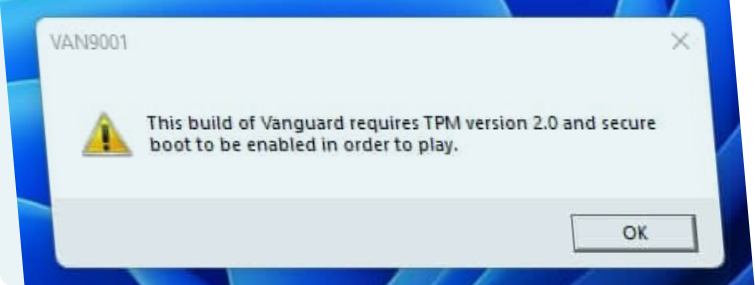
Vanguard – that anti-cheat beast in Valorant – demands Secure Boot and TPM 2.0 on Windows 11. Flip either one off, and it slams the door shut. No wiggle room; the game flat-out won’t start without them. Don’t freak out yet. Yeah, this means poking around in BIOS, but stick with me – I’ll break it down step by step. Everything’s laid out here; skip the forum rabbit holes.
Why Valorant Suddenly Stopped Working
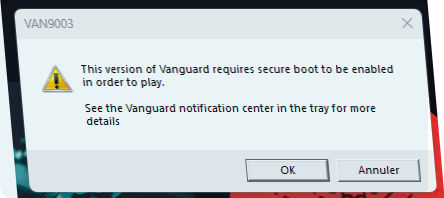
What the hell happened? If it ran smooth last week and now it’s dead silent, blame a sneaky change. Usual suspects:
- Windows updates wipe out security tweaks (Windows pulls this stunt all the time)
- BIOS updates sneakily disable TPM or Secure Boot again
- Fresh Windows 11 install skipping the security setup
- Hardware swaps like new RAM or a motherboard forcing a fresh scan
Vanguard runs a tight “trust check” on boot security. Fail that, and it locks you out cold – hello, VAN errors. One extra kicker: Windows 11 Pro N or Enterprise editions often trip up Vanguard; grab the Media Feature Pack from Microsoft to patch that.
Check What’s Actually Wrong First
Skip the BIOS dive until you know the damage – screw it up, and you’re in deeper trouble.
Step 1: Check Secure Boot Status
Hit Windows key, type msinfo32, Enter. System Information fires up.
Scan the right panel for:
- BIOS Mode → UEFI (Legacy means trouble)
- Secure Boot State → On
Off? Fixable. Unsupported? Your gear can’t handle it – hit up your mobo or PC maker (sucks, but true).
Step 2: Check TPM 2.0 Status
Windows key, type tpm.msc, Enter.
Look for:
- Status: The TPM is ready for use
- Specification Version: 2.0
Seeing “Compatible TPM cannot be found”? It’s off, or your hardware skimped on the module (rare on newer setups). Both good? Jump to “Other Fixes.” Still red? BIOS time.
Enabling Secure Boot and TPM 2.0 in BIOS/UEFI
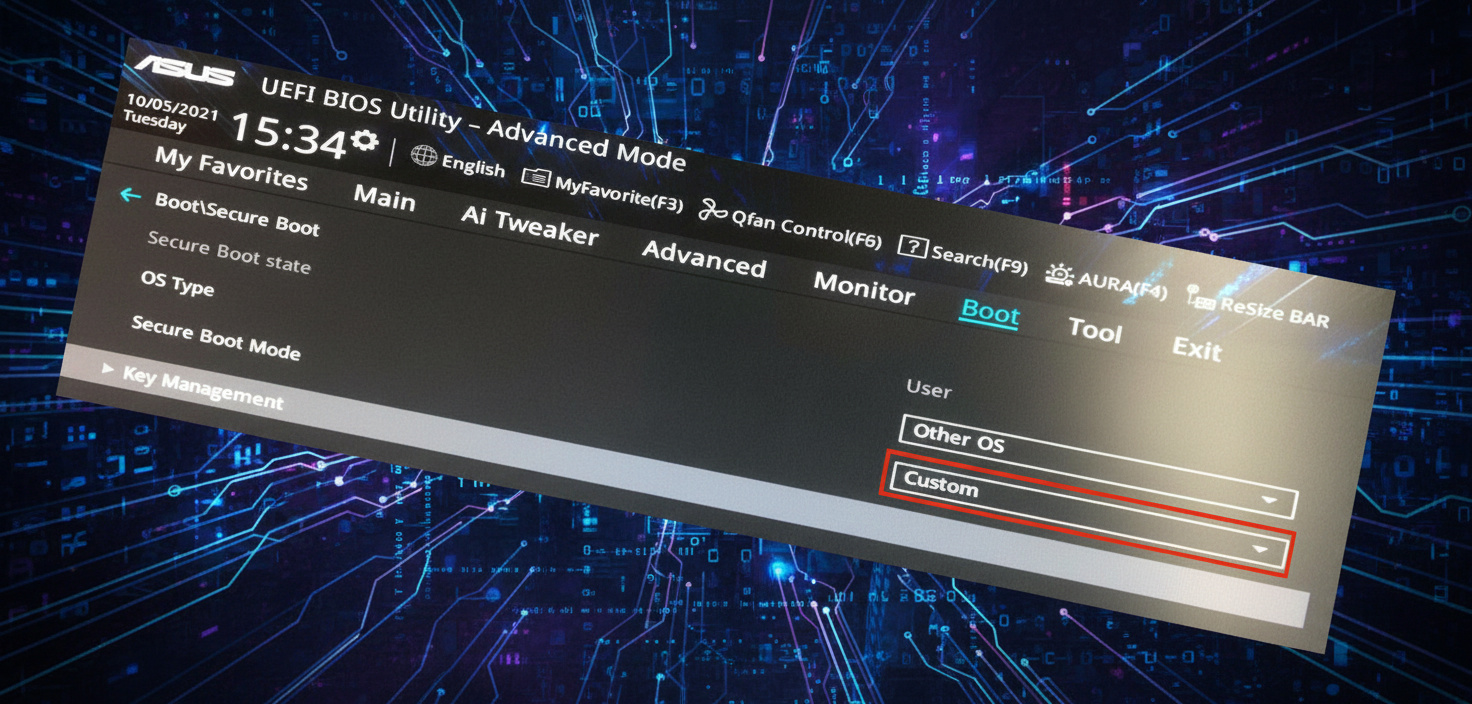
Heads up: BIOS rules boot behavior. Botch it, and your rig might brick on startup. Not your thing? Get a buddy who knows it, or dig into your mobo’s support docs for model-specific tips.
It’s not rocket science, though – just go slow.
How to Enter BIOS/UEFI
Reboot. At the logo splash, mash:
- Delete (go-to move)
- F2 (Dell, ASUS, Lenovo laptops)
- F10 (HP)
- F12 (MSI boards sometimes)
Boot screen usually hints: “Hit DEL for Setup.” BIOS might default to “EZ Mode.” Flip to Advanced Mode with F7 or a button.
Enabling TPM 2.0
Names vary by brand – hunt in:
- Trusted Computing section
- Security menu
- Advanced → Miscellaneous
Options could read:
- Security Device Support (Gigabyte)
- TPM State or TPM Device
- Intel PTT (Intel’s trust tech)
- AMD fTPM or AMD PSP fTPM (AMD’s built-in)
- Secure Chip (Lenovo)
Set to Enabled or Auto.
Example walkthrough (Gigabyte X670E board):
- EZ Mode open – F2 for Advanced
- Settings tab
- Down to Miscellaneous, Enter
- Trusted Platform Module to Auto
- Trusted Computing tab, flip Security Device Support on
- F10 save, exit
Enabling Secure Boot
Head to Boot or Security tab.
First:
- Kill CSM (Compatibility Support Module) or “Legacy Support”
- Lock boot to UEFI (ditch Legacy)
CSM off unlocks Secure Boot – turn it on.
Certain BIOS need a dance: Standard → Custom → Standard to load keys. Prompt for default keys?
- “Install default keys?” → Yes
- “Clear Secure Boot keys?” → No
Heed your BIOS’s cues. F10, save, reboot.
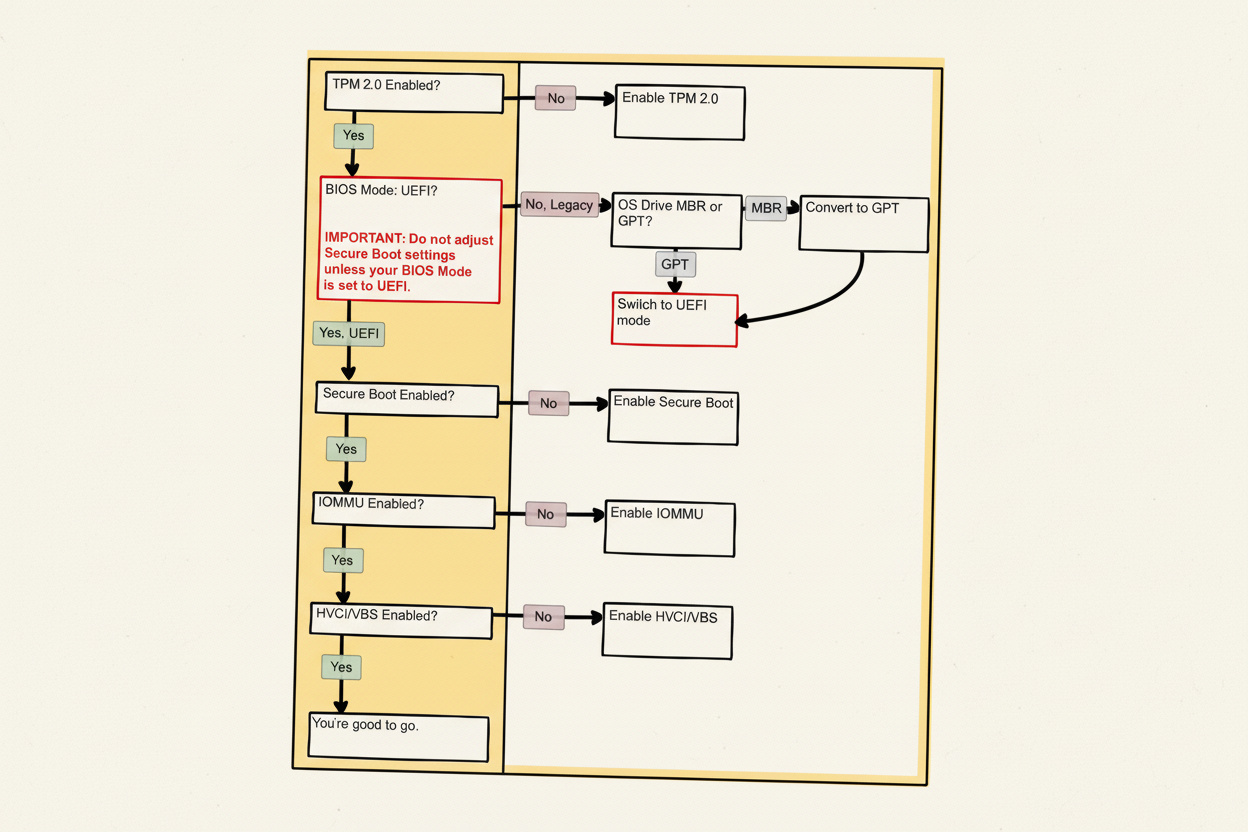
If Your Boot Mode Shows “Legacy” Instead of UEFI
Tricky spot. Secure Boot demands UEFI – no Legacy love. msinfo32 saying “BIOS Mode: Legacy”? Convert your drive from MBR to GPT first. Breathe – Windows tool handles it data-safe.
Convert MBR to GPT (Windows Built-in Method)
Fire up Command Prompt or PowerShell as Admin.
mbr2gpt /validate /disk:0 /allowFullOSGreen light? Then: mbr2gpt /convert /disk:0 /allowFullOS
Drive flips to GPT. Reboot, BIOS again – CSM off, Secure Boot on, save.
VAN9090 Error – TPM Won’t Initialize
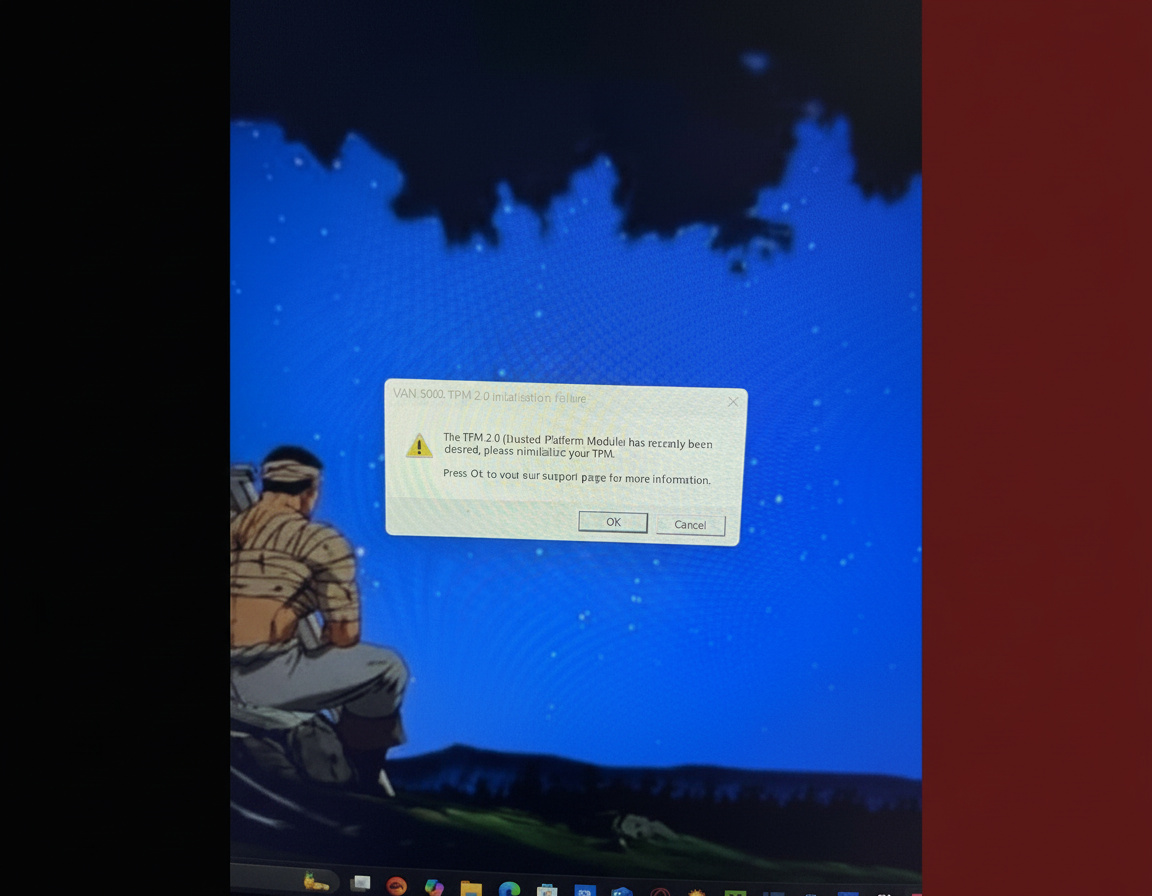
TPM lit in BIOS, but Windows ghosts it (VAN9090)? Hit this:
- tpm.msc open
- TPM console: Prepare the TPM or Clear TPM
- Follow prompts; reboot
- Check tpm.msc – should read “ready”
Still stubborn? BIOS update time. Old firmware bugs TPM hard.
Update via:
- Windows Update → Optional Updates (firmware might lurk)
- Mobo site: Grab latest for your model (msinfo32 spills the deets), flash per their guide
Manufacturer-Specific Guidance Links
Brands tweak BIOS menus wild. Can’t find it? Quick spots:
| Brand | What to Check |
|---|---|
| ASUS | Advanced → Trusted Computing; Boot → Secure Boot |
| Gigabyte | Settings → Miscellaneous → TPM; Boot → Secure Boot |
| MSI | Settings → Security → Trusted Computing; Advanced → Windows OS Configuration |
| ASRock | Security → Secure Boot; Advanced → Trusted Computing |
| Dell | Security → TPM Security; Boot Sequence → Secure Boot |
| HP | Security → System Security; Boot Options → Secure Boot |
| Lenovo | Security → Secure Boot; Security Chip |
| Acer | Boot → Secure Boot; Main → TPM Device |
Brand support pages pack full walkthroughs – search “[brand] enable TPM 2.0” or Secure Boot.
Other Fixes Beyond Secure Boot and TPM
BIOS squared away, still no dice? Dig here.
Reinstall Vanguard Properly
Updates glitch Vanguard bad. Nuke and rebuild:
- Control Panel → Programs → Uninstall
- Hunt Riot Vanguard, axe it
- Reboot
- Riot Client right-click → Run as Admin
- Fire up Valorant – Vanguard respawns
- Reboot pre-game
BCDEDIT Commands for Hypervisor Conflicts
Debug junk clashes with Vanguard. Elevated Command Prompt:
BCDEDIT /set nx optin

BCDEDIT /set debug off

BCDEDIT /deletevalue hypervisorlaunchtype
All done? Reboot.
Check VGC Service
Vanguard’s VGC service gotta boot early.
Windows + R, msconfig, Enter. Services tab – vgc checked, auto-start. Apply, reboot.
Disable Antivirus/Firewall Blocks
Defender or Avast flags Vanguard sketchy.
Windows Security → Virus & threat protection → Protection history. Unblock Vanguard/Valorant stuff.
Third-party? Whitelist ’em.
Update GPU Drivers and DirectX
Stale drivers kill launches post-update.
Snag fresh from:
- NVIDIA site, search your card
- AMD site, auto-detect or manual
Plus Microsoft’s DirectX Runtime web installer.
Run Valorant as Administrator
Permissions snag it. Valorant shortcut → Properties → Compatibility → Run as admin → Apply.
Test Windows 8 mode too – fixes for some.
Disable Fullscreen Optimizations
Path: C:Riot GamesVALORANTliveShooterGameBinariesWin64
Valorant-Win64-Shipping.exe → Properties → Compatibility → Disable fullscreen optimizations → Apply.
Network and DNS Tweaks
Shaky net botches auth. Fixes:
- Google DNS: 8.8.8.8, 8.8.4.4 in adapter props
- DNS flush: Admin CMD,
ipconfig /flushdns, reboot - Kill IPv6: Adapter props → uncheck → Apply → reboot
Check Valorant Server Status
Might not be you – servers glitch. Peek Riot’s status page or forums first.
Clean Boot Method (Use with Caution)
Dead end? Apps interfering. Clean boot narrows it:
- Windows + R, msconfig, Enter
- Services → Hide Microsoft services → Disable All
- But re-check vgc (Vanguard insists)
- Apply, reboot
Launches clean? Hunt the bad app – enable one by one. Watch it: Sloppy clean boots snowball problems – keep vgc alive.
If You’re Still Stuck
Verify Windows Edition Compatibility
Pro N/Enterprise miss media bits, blocking Vanguard. Microsoft’s Media Feature Pack sorts it.
Check System Requirements
Valorant baseline:
- CPU: Intel i3-4150 / AMD Ryzen 3 1200
- RAM: 4GB (8GB’s smarter)
- GPU: GeForce GT 730 / Radeon R7 240
Under? Expect crashes or no-go’s.
Corrupted Game Files
Bad updates trash installs. Total wipe:
- Uninstall Valorant/Riot Client
- Nuke
C:Riot Gamesand%localappdata%Riot Games - Reboot
- Reinstall official, Admin run
Contact Riot Support
No luck? Ticket with:
- Error code (VAN 9001/9003/9090)
- msinfo32 snap: BIOS/Secure Boot
- tpm.msc shot
- Steps tried
They spot account or server glitches.
Quick Reference: Common Error Codes
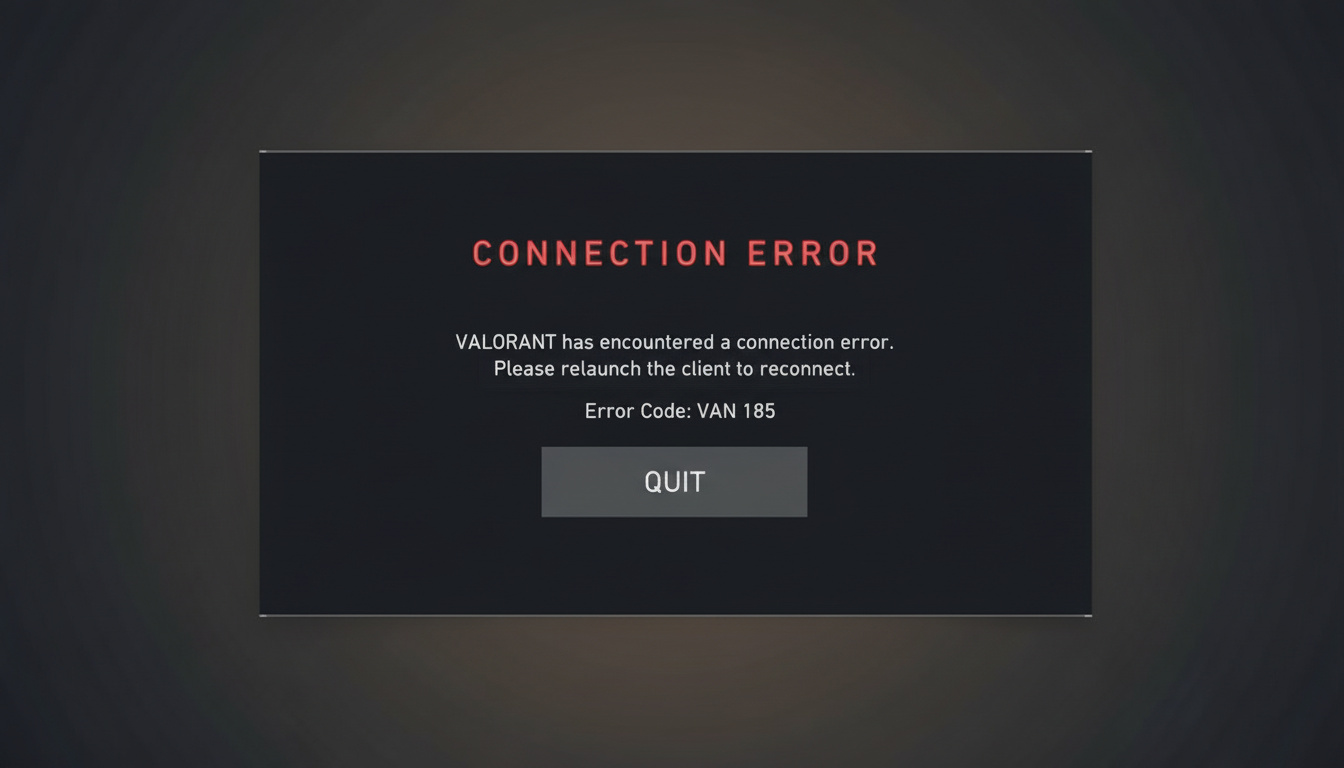
| Error | Meaning | Fix |
|---|---|---|
| VAN 9001 | Secure Boot disabled | Enable Secure Boot in BIOS |
| VAN 9003 | TPM 2.0 disabled or not detected | Enable TPM in BIOS; check tpm.msc |
| VAN 9090 | TPM present but failed to initialize | Prepare/Clear TPM via tpm.msc; update BIOS |
Final Thoughts
Valorant’s lockout rules piss me off – BIOS tweaks just to play? But Vanguard’s iron fist crushes cheats, so worth the hassle.
Nine times out of ten, it’s Secure Boot or TPM 2.0 slacking from updates or lazy setup. Flip ’em on, and it clicks.
Pin this; full BIOS how-to and fixes in one spot – no forum grind.
Still battling? Safe mode, backup, mobo support for BIOS hand-holding.
Queue up – team’s idling.