


Valorant hits you with error codes out of nowhere, turning a solid session into a headache. Spotting if it’s a VAL or VAN code right away points you in the right direction for sorting it out. VAL codes point to glitches in the client, servers, or your account – like timeouts when connecting, queue hangs, or servers just ghosting you. A quick restart or waiting out maintenance usually knocks these out. VAN codes come from Vanguard griping about the anti-cheat setup. Could be it didn’t boot up right, BIOS is in the way, or some app’s clashing hard. These need deeper dives, like BIOS fiddles, driver swaps, or tweaking Windows defenses. Spotting the difference keeps you from wasting time. Restarting won’t touch a TPM glitch, and BIOS hunting won’t fix server outages. I’ve pulled together fixes I’ve run through myself, plus solid ones from forums and YouTube runs. Tables break down every code, steps tackle the tough ones, network tweaks sharpen things up, and yeah, even hardware ban dodges (handle with care). Pin this – it’s all here, no digging through scattered posts.
Comprehensive Valorant Error Code Table
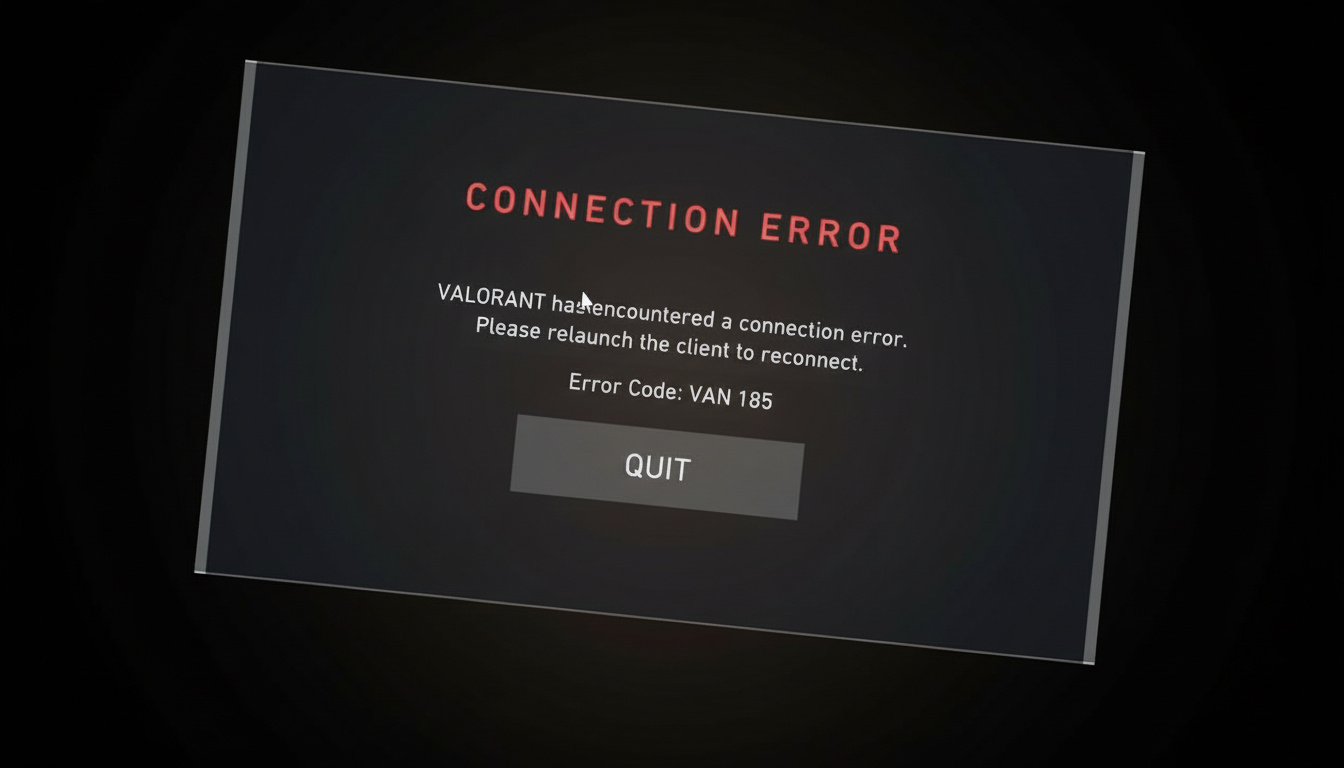
Dozens of codes hit players, each with its own twist and workaround. When one flashes up, hit this spot first – the answer’s often dead simple.
| Error Code | Description (Meaning) | Solution (Fix) |
|---|---|---|
| 0 | Connection Error | Restart VALORANT and the Riot Client. |
| 1 | Connection Error | Restart VALORANT and the Riot Client. |
| 4 | Your display name is invalid | Change your Riot ID (instructions in Riot Client). |
| 5 | Account was logged into elsewhere | Log out from all devices. |
| 7 | Couldn’t connect to session service | May indicate account suspension; check your email and official channels. |
| 8 – 21 | Riot Client problems | Restart the Riot Client. |
| 29 | Network issue | Ensure your firewall allows VALORANT; check network settings. |
| 31 | Failed to get player name information | Restart the Riot Client. |
| 33 | Riot Client process closed | Restart the Riot Client. |
| 38 | Connection Error | Restart VALORANT and the Riot Client. |
| 39 | Server unavailable | Server maintenance; retry later. |
| 43 | System timed out | Restart the Riot Client. |
| 44 | Vanguard not initialized | Restart the Riot Client; if it persists, uninstall/reinstall Vanguard. |
| 45 | Vanguard reboot required | Restart Riot Client; if it persists, uninstall/reinstall Vanguard. |
| 46 | Platform downtime (maintenance) | Wait and try again after downtime. |
| 49 | Chat initialization failed | Restart the Riot Client. |
| 50 | Voice initialization failed | Restart the Riot Client. |
| 51 | Problem creating a party | Restart the Riot Client. |
| 52 | Problem fetching skill information | Restart the Riot Client; if persistent, check support site and submit ticket if needed. |
| 53 | Problem with Riot Client chat | Restart the Riot Client; check support site if persistent. |
| 54 | Content service failure | Restart the Riot Client. |
| 55 | ApplicationRepairManagerInitFailure | Restart the Riot Client; check support site if persistent. |
| 56 | LegalInfoInitFailure | Restart the Riot Client; check support site if persistent. |
| 57 | PlayerAffinityInitFailure | Restart the Riot Client; check support site if persistent. |
| 58 | RSOValidationFailure | Restart the Riot Client; check support site if persistent. |
| 59 | LoginQueueFetchTokenFailure | Restart Riot Client; check support site. |
| 60 | PatchInitFailure | Restart Riot Client. |
| 61 | Banned from VALORANT | Submit a ticket to Riot support. |
| 62 | NoGamepodsToPingFailure | Network issue; restart Riot Client; submit ticket if persists. |
| 63 | ManagerDeleted | Restart Riot Client. |
| 64 | SessionFetchFailure | Restart Riot Client. |
| 65 | PatchAvailabilityInitFailure | Restart Riot Client. |
| 66 | ContentIndexInitFailure | Restart Riot Client. |
| 67 | ChatFriendMetadataInitFailure | Restart VALORANT and Riot Client; submit ticket if persists. |
| 68 | CapEntitlementsFetchError | Restart Riot Client; check support site or submit ticket. |
| 69 | CapWalletsFetchError | Restart Riot Client; check support site or submit ticket. |
| 70 | StoreOffersFetchError | Restart Riot Client; check support site or submit ticket. |
| -81 | Service start failed | Restart PC and Riot Client; if persists, reinstall Vanguard and VALORANT. |
| 128 | Connection error (relaunch client) | Restart PC and Riot Client; reinstall Vanguard and VALORANT if persistent. |
| 138 | Connection error (VM detected) | Do not use a virtual machine; install on standard Windows. |
| 152 | HWID ban | Hardware ban. See account ban workaround section. |
These VAN codes tie straight into anti-cheat headaches, so they call for different moves than basic client snags:
| VAN Error Code | Description |
|---|---|
| VAN 9001 / VAN 9003 | Vanguard not initialized (often TPM/Secure Boot issue) |
| VAN 1067 | Driver component error |
| VAN 140 | Requires Windows 10 or 11 upgrade |
Grab the code from the crash popup or dialog. These breakdowns cut through the forum noise – I’ve sifted it all for you.
Solutions for the Most Common Error Codes
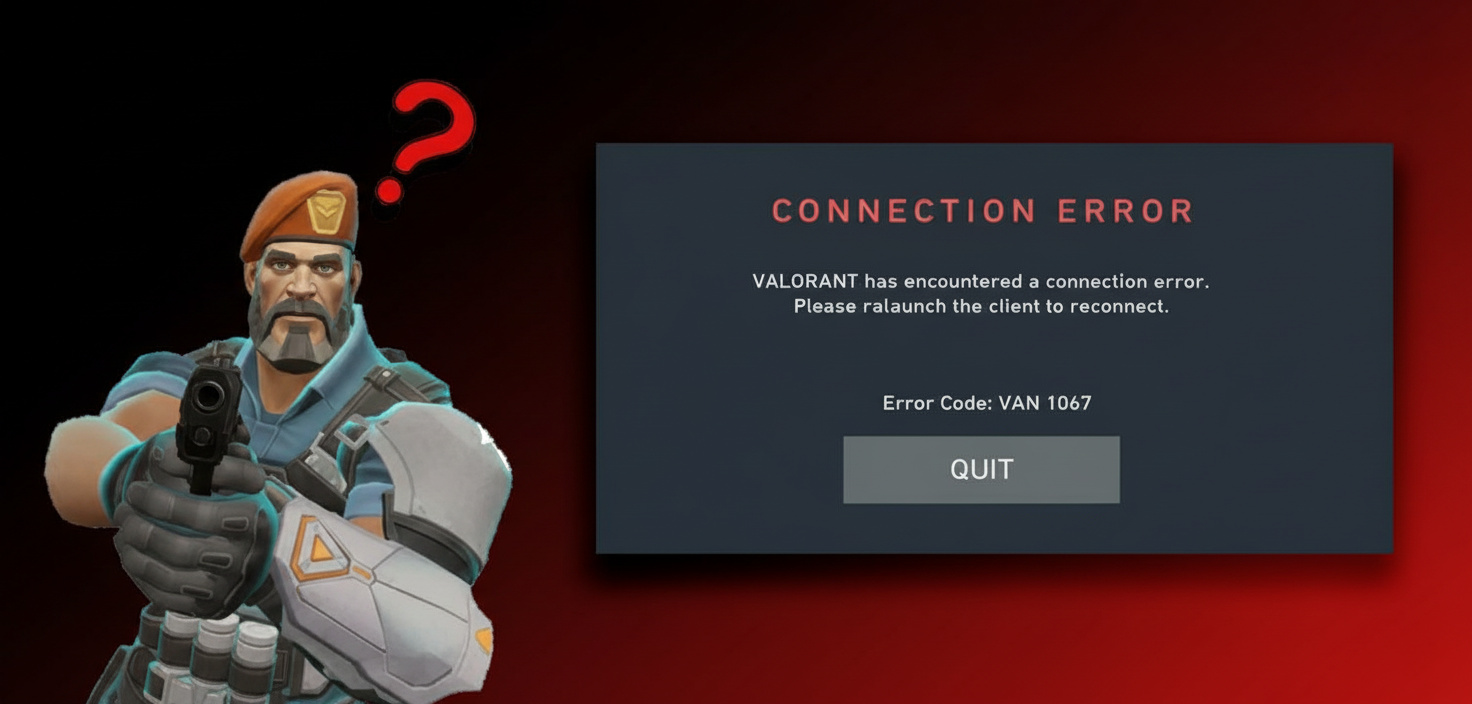
Certain errors keep coming back, others sneak in rare but brutal. Here’s how to smash the frequent ones, with clear steps and extra bits from player chats I’ve dug into.
Fixing VAN 0 (Connection Issue)
VAN 0 flags a link snag between your rig and Valorant’s servers. Riot’s end might be glitchy sometimes, but check your side first.
Step-by-step:
- Restart VALORANT and the Riot Client completely (don’t just minimize).
- If unresolved, restart your computer – this ensures Vanguard anti-cheat service is fully restarted with fresh system privileges.
- Verify your internet connection is stable and not experiencing packet loss (run a quick ping test to Google or Cloudflare).
- Consider using wired Ethernet instead of Wi-Fi for more reliability; wireless connections introduce unpredictable latency spikes.
- If these steps fail, check if Riot servers are down via official channels (Twitter, support site banners).
Pro tip: If you’re consistently hitting VAN 0 during peak hours, your ISP might be throttling gaming traffic. A network booster tool can reroute around congested nodes – though I’d only recommend this if standard fixes don’t work.
Fixing VAL 19 (Riot Server Connection Issue)
VAL 19 shows when the client can’t link up with auth or session servers.
- Restart both the game and the Riot Client.
- Wait a few minutes if it persists – Riot may be experiencing backend issues.
- Restart your router to refresh your connection and clear any cached DNS entries.
- Ensure no firewall or security software is blocking Riot services (check both Windows Firewall and any third-party antivirus).
Personal experience: I’ve seen VAL 19 disappear after simply waiting 10 minutes. Don’t panic and reinstall everything; patience often wins here.
Fixing VAL 45 (Vanguard Reboot Required)
VAL 45 hits when Vanguard needs a fresh start but gets stuck.
- Restart your computer completely – not just a logout/login cycle.
- Ensure Riot Vanguard launches automatically with system startup (check Task Manager → Startup tab).
- If the error remains, uninstall Riot Vanguard:
- Go to “Add or Remove Programs”
- Select “Riot Vanguard,” uninstall, and then restart your PC
- Open VALORANT again; Vanguard will reinstall automatically and prompt for necessary permissions.
- Make sure your security software does not block Vanguard – add it to your antivirus whitelist if needed.
Warning: Some antivirus programs (especially Malwarebytes) treat Vanguard as suspicious due to its kernel-level access. You may need to create exceptions for VGC.exe and vgk.sys.
Fixing VAL 46 (Maintenance/Downtime)
VAL 46 just means downtime – Riot’s patching or fixing something big.
- Note that this error indicates scheduled or unscheduled downtime; there’s nothing wrong with your setup.
- Wait for Riot to bring servers back online (maintenance windows are usually announced in advance).
- Check VALORANT’s support channels for updates on downtime status and estimated return times.
- Do not attempt repeated reinstalls or major system changes for this error – it won’t help and wastes your time.
Resolving VAL 57 (Vanguard Not Running Properly)
VAL 57 sucks because Vanguard’s down but restarts barely budge it. Culprits range from clashing apps to old drivers.
- Restart your computer to restart Vanguard anti-cheat with fresh kernel permissions.
- If the error persists:
- Turn off unnecessary background/third-party apps, especially overlays (Discord, MSI Afterburner, RivaTuner), monitoring tools, or aggressive antivirus programs
- Uninstall and then reinstall Riot Vanguard through Add/Remove Programs
- Update all drivers for your system, particularly chipset and network adapters
- Set the VGC service to “Automatic” startup in Windows Services (Win+R →
services.msc→ find VGC → Properties → Startup type: Automatic)
- For older PCs with less than 4GB RAM, Vanguard may struggle to initialize reliably due to memory constraints.
- As an alternative workaround, play in Windows 7/8 compatibility mode (right-click Valorant executable → Properties → Compatibility → Run in compatibility mode for Windows 7).
Community insight: VPN tools like LagoFast have occasionally helped bypass rare connection issues tied to VAL 57, though this isn’t a guaranteed fix – use only if other methods fail.
Fixing VAN 9001 and VAN 9003 (TPM/Secure Boot / Anti-cheat Error on Windows 11/10)
These crop up when Secure Boot or TPM 2.0 sit disabled in BIOS – Vanguard needs them for lock-tight checks, especially on Windows 11.
Steps:
- Check TPM and Secure Boot status before touching BIOS:
- Open
msinfo32(Win+R, type msinfo32, Enter) - Find “BIOS Mode” – it should say “UEFI” (if it says “Legacy,” you may need BIOS conversion)
- Find “Secure Boot State” – should be “On”
- For TPM, run
tpm.mscand ensure TPM is enabled and ready
- Open
- If disabled, reboot and enter BIOS (typically with Delete or F2 key during boot – timing varies by motherboard; spam the key during startup).
- In BIOS:
- Enable “Secure Boot” – location varies (often under “Boot” or “Security” tabs)
- Enable TPM – may be called “PTT” for Intel systems, “fTPM” for AMD
- Save changes (usually F10) and reboot again
- Update your BIOS if menu options are missing or buggy, especially on older AMD Ryzen mainboards running Windows 11 (AMD released critical BIOS updates addressing TPM stability in 2024-2025).
- After enabling, run Riot Client and VALORANT as Administrator and set compatibility mode to Windows 8 (right-click executable → Properties → Compatibility tab → check “Run as administrator” and select Windows 8 compatibility).
- Restart your PC after BIOS/security changes to apply kernel-level permissions.
Critical warning: Making changes in BIOS can cause serious problems if done incorrectly, including boot failures. Always consult your motherboard manual or a professional if you’re uncertain about navigation or options. Write down your current settings before changing anything.
Alternate approach (if BIOS navigation is intimidating): Some motherboards allow TPM preparation through Windows – run tpm.msc, click “Prepare the TPM,” and follow prompts. This method is safer but doesn’t work on all systems.
General Connection and Network Issue Fixes
Hitting lag, drops, or timeouts without a clear code? These steps tackle the usual suspects. Tweaking your setup can steady things out way better than fiddling in-game.
Network Troubleshooting Steps
- Prefer Wired Ethernet over Wi-Fi for lower ping and packet loss – wireless introduces unpredictable latency spikes and interference from neighboring networks.
- Update your network adapter drivers in Device Manager (right-click Start → Device Manager → Network adapters → right-click your adapter → Update driver).
- Disable power-saving features for your network adapter:
- Control Panel → Network and Internet → Network and Sharing Center → Change adapter settings
- Right-click your adapter → Properties → Configure → Power Management tab
- Uncheck “Allow the computer to turn off this device to save power”
- Change DNS server for best ping (test multiple to find lowest latency):
- Cloudflare: 1.1.1.1 / 1.0.0.1
- Google: 8.8.8.8 / 8.8.4.4
- Set in adapter IPv4 properties under “Use the following DNS server addresses”
- Advanced adapter tweaks (Properties → Configure → Advanced tab):
- Disable: ARP Offload, Energy Efficient Ethernet, Flow Control, Idle Power Down, Large Send Offload (IPv4/IPv6), TCP/UDP Checksum Offloads, Jumbo Packets
- Enable: Packet Priority & VLAN
- Set Interrupt Moderation to “Enabled” with rate “Low”
- Set Speed & Duplex to Auto Negotiation (or try 2.5 Gbps full duplex if your hardware supports it)
- Disable: Wake on Magic Packet, Wake on Pattern Match, and similar options
- Allow VALORANT and Riot Vanguard through Windows Firewall for both private and public networks:
- Windows Security → Firewall & network protection → Allow an app through firewall
- Click “Change settings” → “Allow another app” → Browse to typical path:
C:Riot GamesValorantliveShooterGameBinariesWin64VALORANT.exe - Check both Private and Public boxes
- Use network boosting software (optional – examples like GearUp/Gear Booster) to route traffic to closest servers and optimize RAM during gaming sessions. I’d only suggest this if you’re comfortable with third-party tools and standard fixes haven’t resolved connection issues.
- Run these Command Prompt commands (as Administrator, in order, to reset networking stack):
netsh int ip resetipconfig /releaseipconfig /renewipconfig /flushdnsnetsh winsock reset
- Restart your computer afterward – these changes require a full reboot to apply properly.
- Optionally run network optimizer or registry tweaks – but create a System Restore Point first (search “Create a restore point” in Windows search → Create button).
Additional Windows settings to disable:
- Windows Update → Advanced Options → Delivery Optimization → Turn off “Download from other devices” (this uses your bandwidth to distribute updates to other PCs on your network or internet).
These network tweaks have saved me countless hours of frustration with inconsistent ping. Small adjustments – like disabling checksum offloads – can eliminate micro-stutters that don’t show up in obvious lag spikes.
Dealing with Account Bans (VAL 61, HWID Ban)
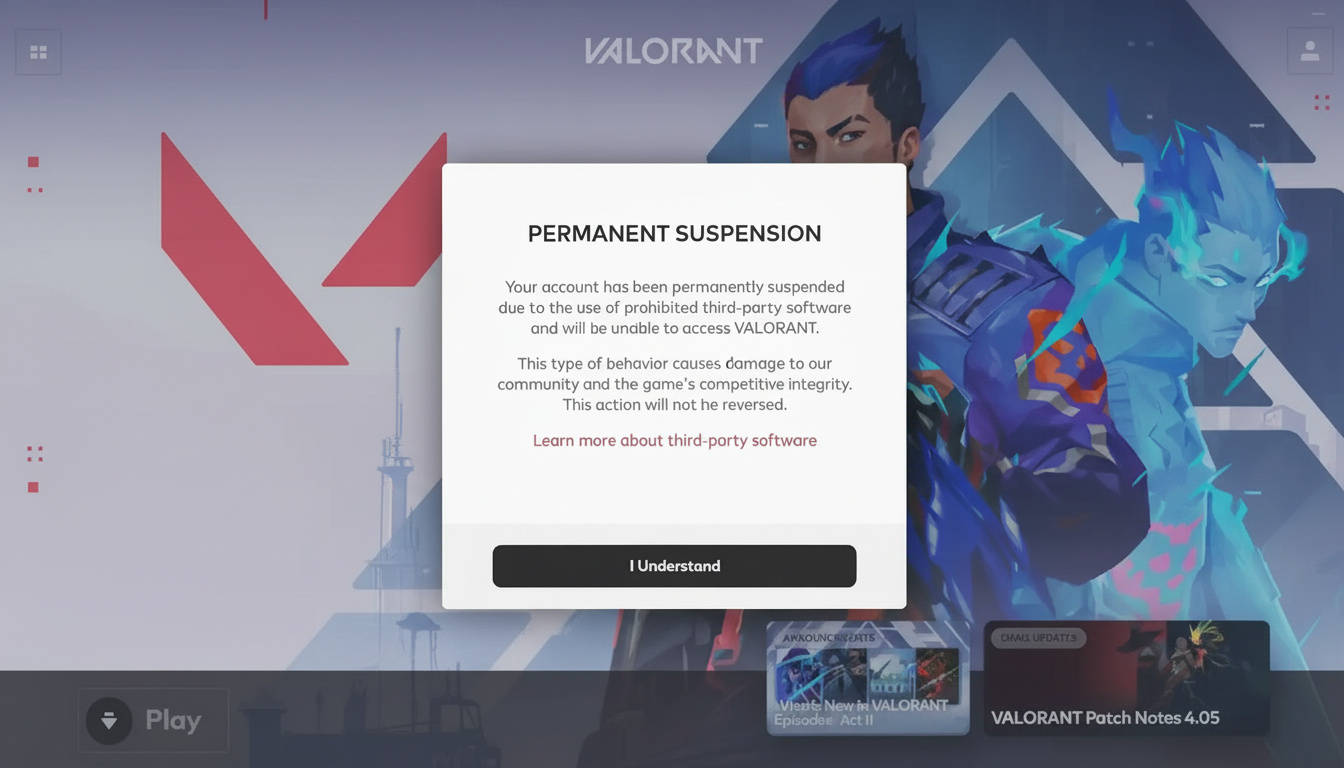
Bans drop for everything from chat toxicity to outright cheats. Knowing the flavor tells you if appealing’s even worth it.
| Ban Type | Duration | Causes |
|---|---|---|
| Temporary | Few hours to 72 hours | Minor violations, toxic behavior, leaving matches |
| Permanent | Indefinite | Cheating, hacking, severe rule violations |
| Hardware ID ban (VAN 152, VAL 5) | ~4 months (may be permanent) | Detected cheating on a given PC; prevents creating new accounts |
For VAL 61 (Account Ban):
- Submit a support ticket:
- Go to the official Valorant Support website
- Log in with your credentials
- Select “Account Bans & Restrictions” as the issue type
- Write a detailed, polite message including your account details and any evidence supporting your case (screenshots, match history, etc.)
- Await a response – Riot Support typically replies within a few days; decisions are often final, but presenting evidence calmly can sometimes result in review.
Important: Being rude or demanding in your ticket accomplishes nothing except ensuring your case gets dismissed. Approach with honesty and respect.
For VAN 152/VAL 5 (Hardware Ban):
What is a HWID ban? It’s a ban applied at the hardware level, targeting specific identifiers like your motherboard serial number, CPU ID, or drive serials. Changing accounts won’t help – Vanguard recognizes the machine itself.
Officially recommended solutions:
- Wait out the ban duration (typically around 4 months for first-time hardware bans).
- Obtain a new device with different hardware identifiers.
Community workaround (at your own risk): Some players use hardware ID spoofers to alter system identifiers and bypass HWID detection. Tools like Impact Vanguard claim to modify these values.
Spoofing process (general overview, not a recommendation):
- Run the spoofing tool and select “natural spoof” mode.
- Tool modifies device identifiers (motherboard, CPU, drive serials) and reports a spoofed state.
- Reboot your system.
- Attempt to launch VALORANT again – the system should now report new identifiers.
Critical disclaimer: Using spoofers violates Riot’s Terms of Service and can risk additional bans, account deletion, or even legal action. Spoofers may also introduce malware or system instability. I’m including this information for awareness, not endorsement – use at your own risk and understand the consequences.
Advanced Solutions for Persistent or Uncommon Issues
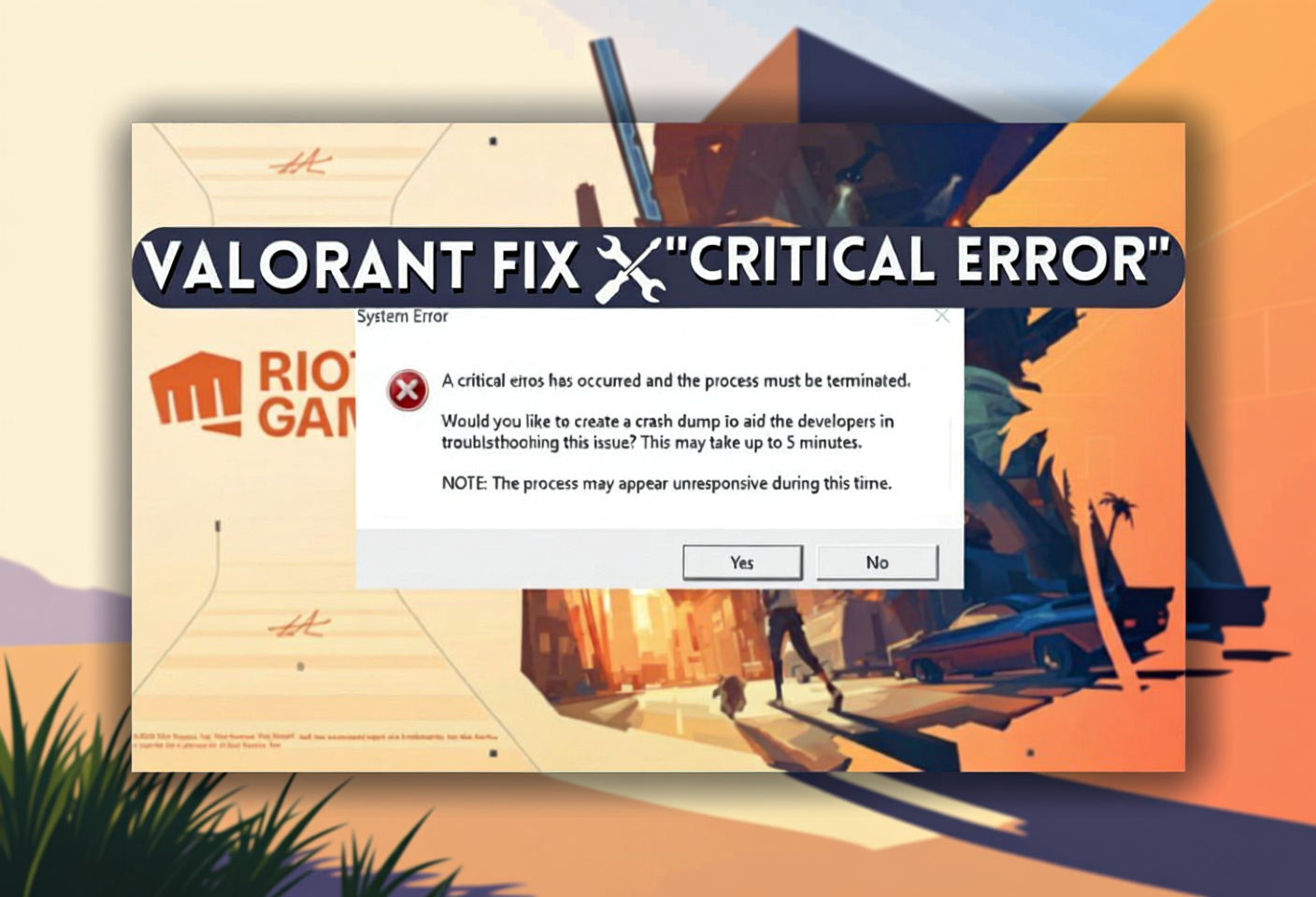
For stubborn glitches that shrug off basics, these go further into the weeds. If the usual stuff flops, try these.
Full TCP/IP Reset and System Locale Fix
Borked network stacks lead to weird drops that laugh at simple fixes. Full reset wipes routes, DNS junk, and Winsock mess.
TCP/IP Reset:
- Open Command Prompt as Administrator (Win+X → Command Prompt (Admin) or Windows PowerShell (Admin)).
- Enter these commands one at a time, pressing Enter after each:
netsh int ip resetipconfig /releaseipconfig /renewipconfig /flushdnsnetsh winsock reset
- Restart your PC – this is mandatory; changes won’t apply until reboot.
System Locale (Unicode/Language) Fix:
- Open Control Panel → Clock and Region → Change date, time, or number formats.
- Go to the Administrative tab, click Change system locale.
- Set locale to “English (United States)” or “English (United Kingdom)” OR enable “Beta: Use UTF-8 for worldwide language support” (this checkbox appears at the bottom).
- Click OK and restart your PC when prompted.
Why this matters: Vanguard’s kernel driver sometimes conflicts with non-English locale settings or Unicode configurations, causing initialization failures that appear as VAN codes.
MSConfig Clean-Boot to Isolate Conflicting Services
Suspect a background service messing with Vanguard? Clean boot strips it down to basics.
Steps:
- Press Win+R, type
msconfig, press Enter. - Go to the Services tab, check “Hide all Microsoft services” (this prevents you from accidentally disabling critical Windows services).
- Uncheck all non-Microsoft services – leave Riot Vanguard services enabled if visible.
- Go to the Startup tab, click “Open Task Manager”.
- In Task Manager → Startup tab, disable all startup items (right-click each → Disable).
- Restart your computer and launch VALORANT.
- If the problem is gone, re-enable services and startup items one at a time to identify the specific conflict.
Common conflicting programs:
- MSI Afterburner – GPU monitoring/overclocking tool; conflicts with Vanguard kernel driver
- RivaTuner Statistics Server – overlay tool; triggers anti-cheat detection
- Malwarebytes – some versions aggressively block Vanguard components
- Third-party antivirus programs (especially aggressive ones like Avast, AVG, or Norton)
- Discord overlay, NVIDIA GeForce Experience overlay, or similar screen-capture tools
Personal note: I’ve found MSI Afterburner to be the most frequent culprit. If you use it for monitoring temps/clocks, close it entirely before launching Valorant – even minimized, it can trigger conflicts.
Valorant Not Updating Properly
Riot Client can freeze on updates, looping verifies or choking on downloads. This skips the full 25+ GB haul.
Steps:
- Ensure Riot Client is fully closed (check Task Manager for lingering processes).
- Right-click Riot Client shortcut and run as Administrator.
- Try manually clicking the Update button to give full permission for file modifications.
- Use Riot profile icon (top-right) → Settings → Valorant → “Repair” to scan for corrupt files and restore them.
- If update fails repeatedly:
- Backup your Valorant folder (typically C:Riot GamesValorant) – copy entire folder to Desktop or external drive (approx. 25.9 GB)
- Uninstall Valorant, Riot Client, and Vanguard – use a third-party uninstaller tool (like AOMEI DoYourDataEraser or Revo Uninstaller) for deep clean that removes leftover registry entries and files
- Download and install Riot Client (this downloads client files, ~359 MB initially)
- When Riot Client begins the game install and creates the Valorant folder, pause the installer
- Copy your backed-up Valorant folder into the Riot Games install location, overwriting the new empty folder
- Resume installation – client will now verify files instead of redownloading the full game (verification should take minutes instead of hours)
- Restart your PC when prompted and launch Riot Client.
This method reduces download time from hours to minutes by relying on client verification instead of full re-download – I’ve used this countless times after problematic patches.
Fixing Game Crashes and OBS/Streaming Issues
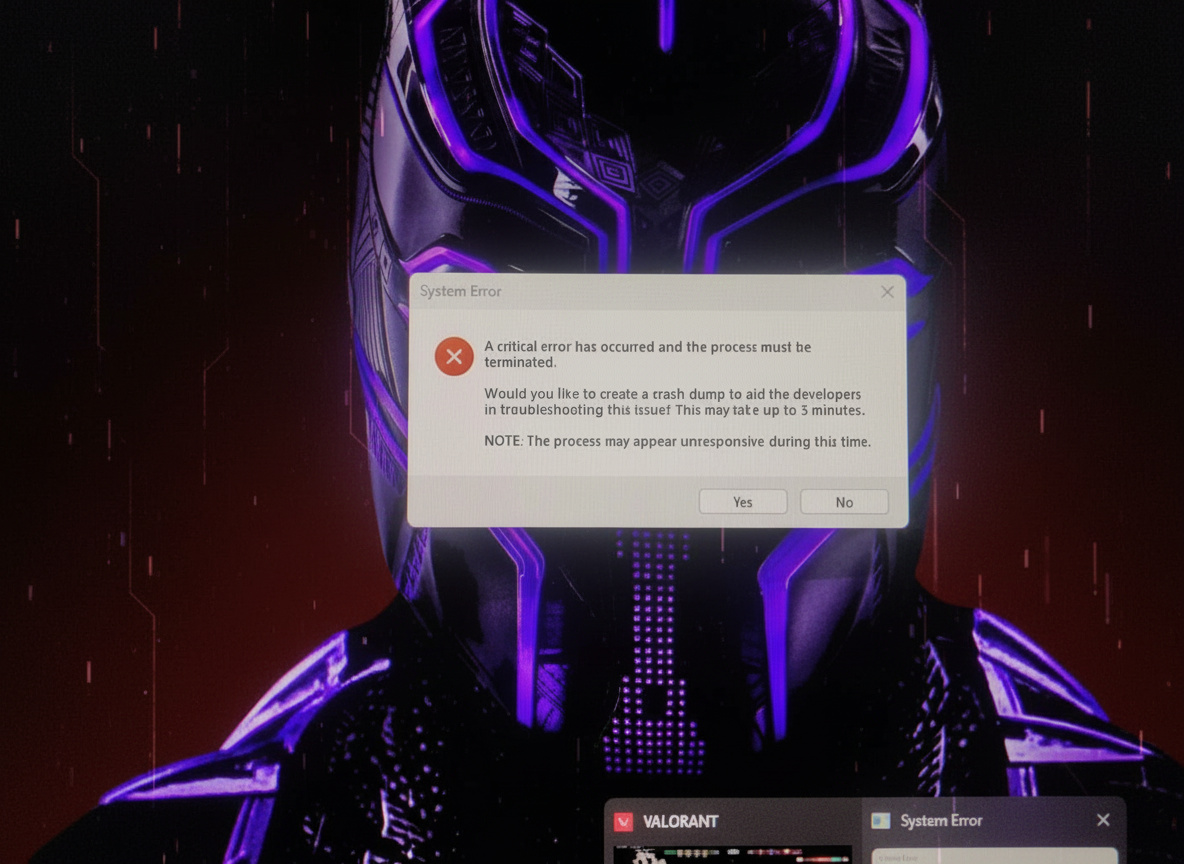
Overlays and streamers clash with Vanguard, sparking crashes, blacks, or tanked frames. If streaming’s the trigger, hit these.
OBS and Streaming Tool Conflicts
- If Valorant or other games (such as COD Black Ops 6) crash with new OBS versions:
- Downgrade OBS to a known stable release – version 31.0.1 has proven reliable with Vanguard
- Use Display Capture mode instead of Game Capture to avoid direct hooking conflicts (Window Capture → select Valorant window)
- Disable overlays in third-party tools:
- Discord overlay – User Settings → Overlay → toggle off “Enable in-game overlay”
- NVIDIA GeForce Experience overlay – Settings → General → toggle off “In-Game Overlay”
- Steam overlay – Settings → In-Game → uncheck “Enable the Steam Overlay while in-game”
Why this happens: Vanguard treats overlay injections as potential security threats since they hook into the game process. Newer OBS versions use updated hooking methods that trigger false positives in Vanguard’s detection algorithms.
Workaround for streamers: If you must use the latest OBS for features, consider streaming from a second PC with a capture card – this entirely avoids software conflicts while maintaining full quality.
Useful Tips for Preventing Future Errors

Staying ahead cuts down on fixes. Run this checklist to keep your setup tight and errors at bay.
System Maintenance Checklist:
- Keep Windows, graphics drivers, and motherboard BIOS/chipset drivers up to date – outdated drivers cause compatibility issues with Vanguard, especially on AMD Ryzen systems running Windows 11
- Avoid running software with overlays or monitoring while gaming – close MSI Afterburner, RivaTuner, Discord overlay, etc., before launching Valorant
- Add Valorant and Riot Client to Windows Firewall – allow for both private and public networks to prevent connection blocks
- If using Windows 10/11, disable “Delivery Optimization” in Windows Update → Advanced Options – this prevents bandwidth consumption from peer-to-peer update sharing
- Create a System Restore Point before system tweaks – if something breaks, you can roll back without reinstalling Windows
- Periodically verify game file integrity through Riot Client (Settings → Valorant → Repair) – corruption happens over time, especially after abrupt shutdowns
Pro tip: I keep a document with my current BIOS settings screenshot and driver versions. If something breaks after an update, I know exactly what changed – saves hours of guesswork.
Most Valorant errors are fixable by following these professional and community-recommended steps. Start with simple restarts, escalate to network resets or BIOS changes only when necessary, and remember – patience often solves more problems than aggressive reinstalls. Bookmark this page since all necessary information is already gathered here, and you can return whenever a new error code appears.